Accessing the myTC Portal

The following steps will get you logged into your Texarkana College account.

   1.      Browse to https://my.texarkanacollege.edu/
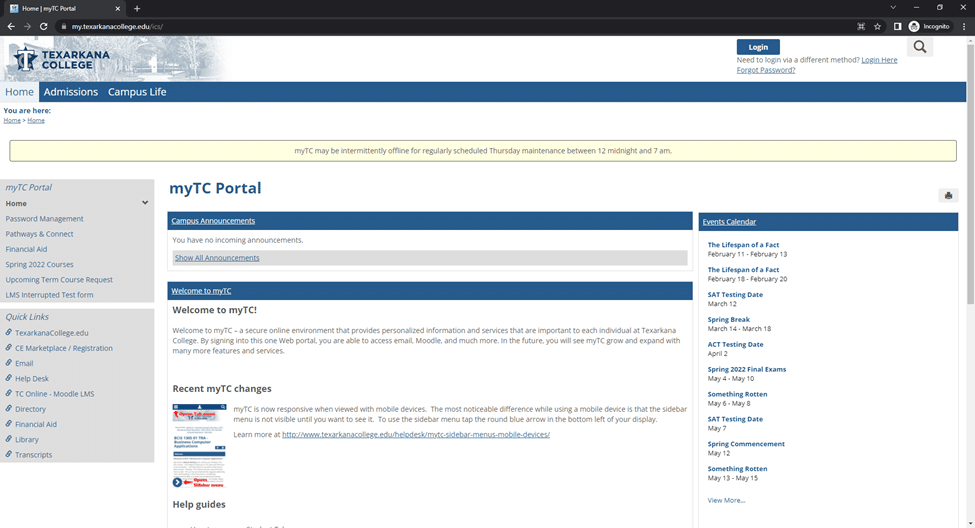
Screenshot of the Texarkana College myTC Portal homepage, showing navigation menus on the left, announcements and information in the center, and an events calendar and quick links on the right, with a blue and white color scheme.

        a.      Alternatively, browse to https://www.texarkanacollege.edu/ and click For Current Students.

Screenshot of the Texarkana College website homepage. The top menu has an arrow pointing to the For Current Students link. A welder works on metal in a featured image next to the text, Start or Start Over.

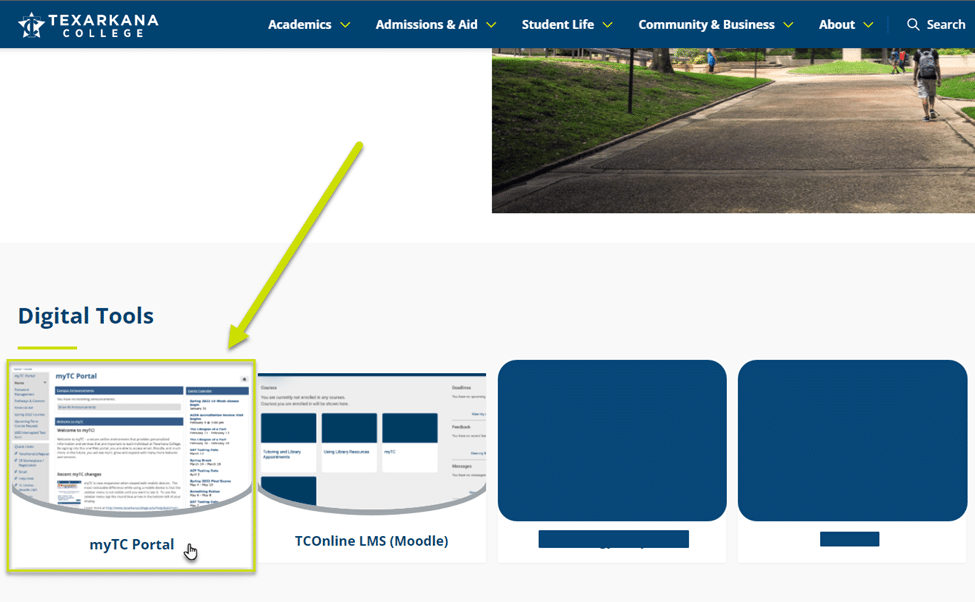
        b.     Click myTC Portal.

A screenshot of a computer.

   2.      To log in, click the Login button in the upper right corner of the page.
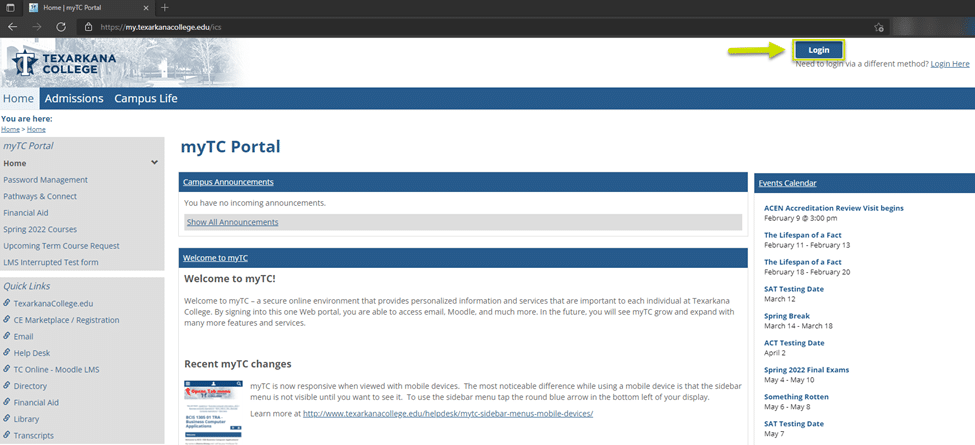
Screenshot of the Texarkana College myTC Portal webpage, showing navigation links on the left, campus announcements, recent changes, and a green arrow pointing to a blue Login button at the top right.

   3.      On the following page, enter your Texarkana College account information

        a.      This is your first INITIAL, followed by a period (.), your FULL last name, the last 4 digits of your student ID, followed by “@texarkanacollege.edu”.
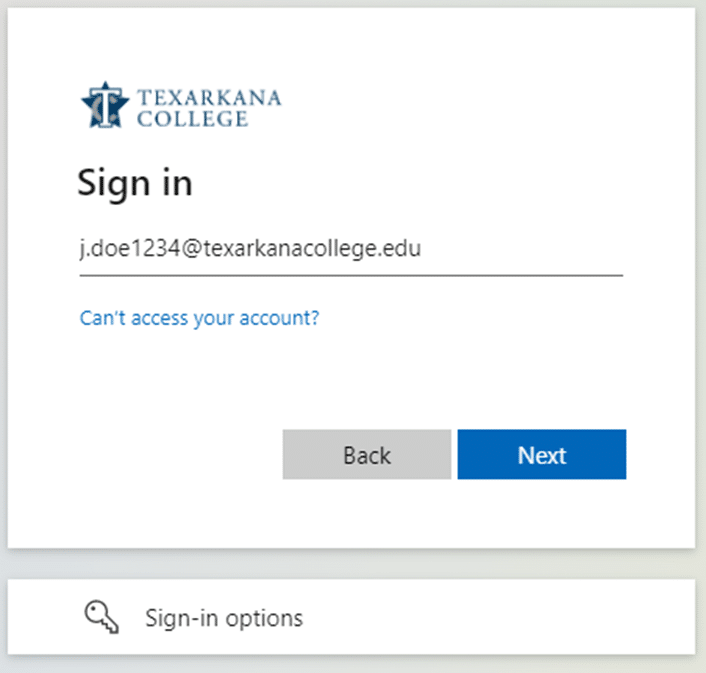
A Texarkana College login screen showing a sample email address, options to go back or proceed, and a link for sign-in options.

   4.      You will now be signed in, and have access to the Student tab, located in the header menu.
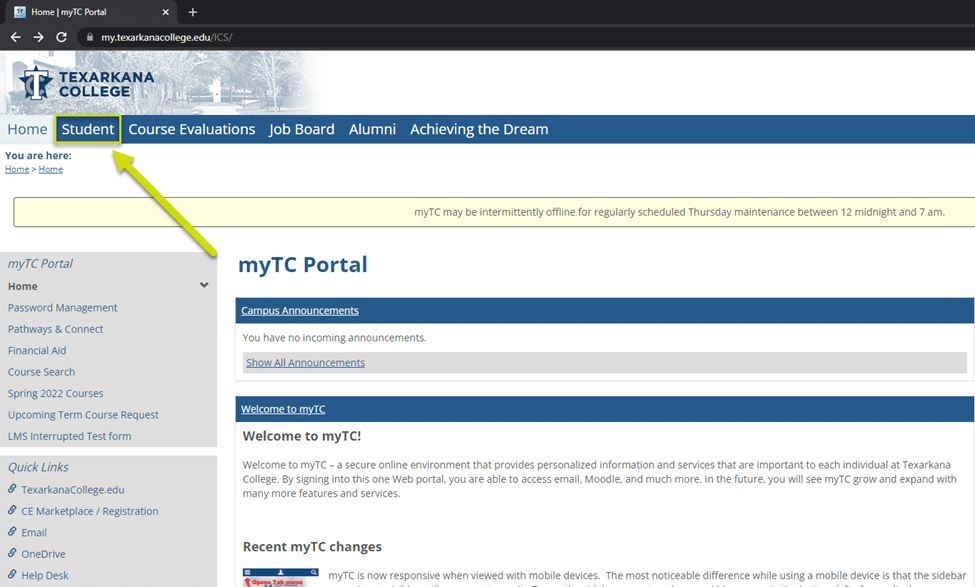
Screenshot of the Texarkana College website’s myTC Portal page, with a green arrow pointing to the “Student” tab in the main navigation menu at the top.