Reset Your Password using Microsoft Self-Service Password Reset (SSPR)
Self-service password reset allows you to reset your password on your own, without
needing to contact the Service Desk. For this to work, you need to have already registered for password reset.
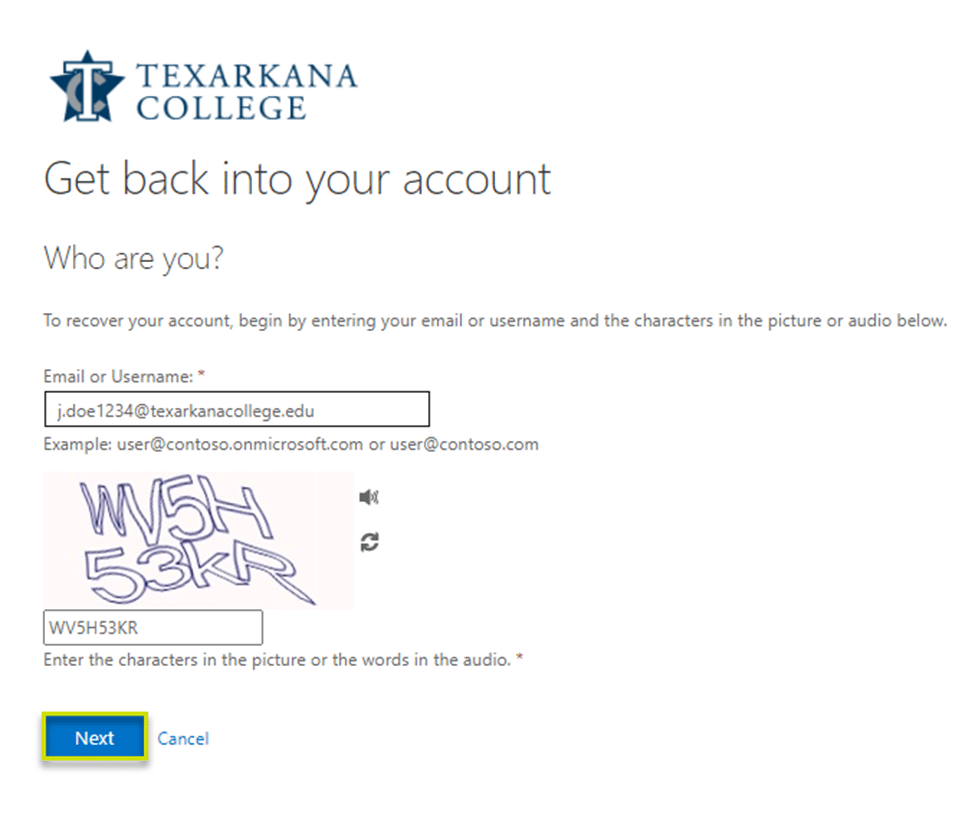
1. Go to https://passwordreset.microsoftonline.com/
2. Enter your full TC email address in the User ID field and enter the characters in the
CAPTCHA image.
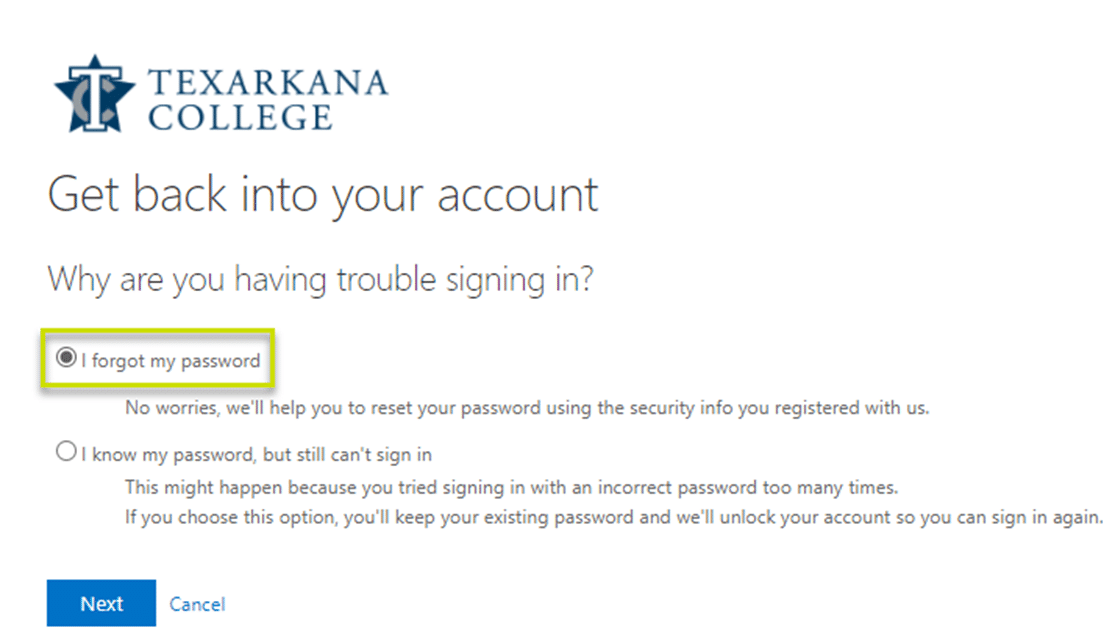
3. Choose “I forgot my password”.
4. Select “Text my mobile phone”, and enter the mobile number associated with your
account.
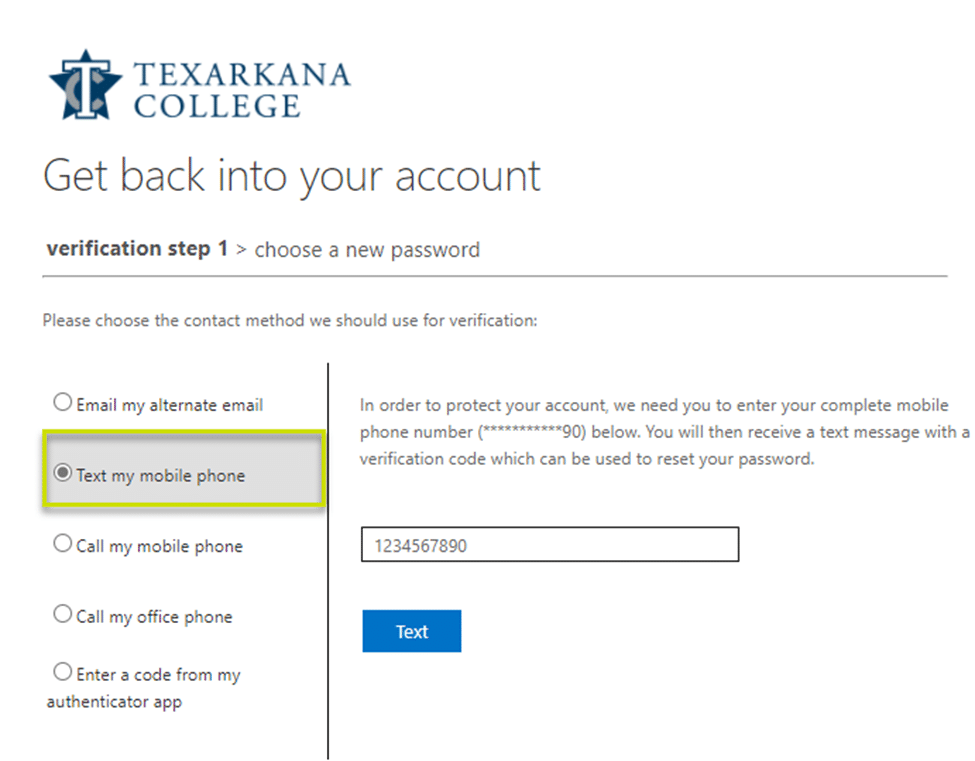
a. Select “Call my mobile phone” if you’re unable to receive text messages.
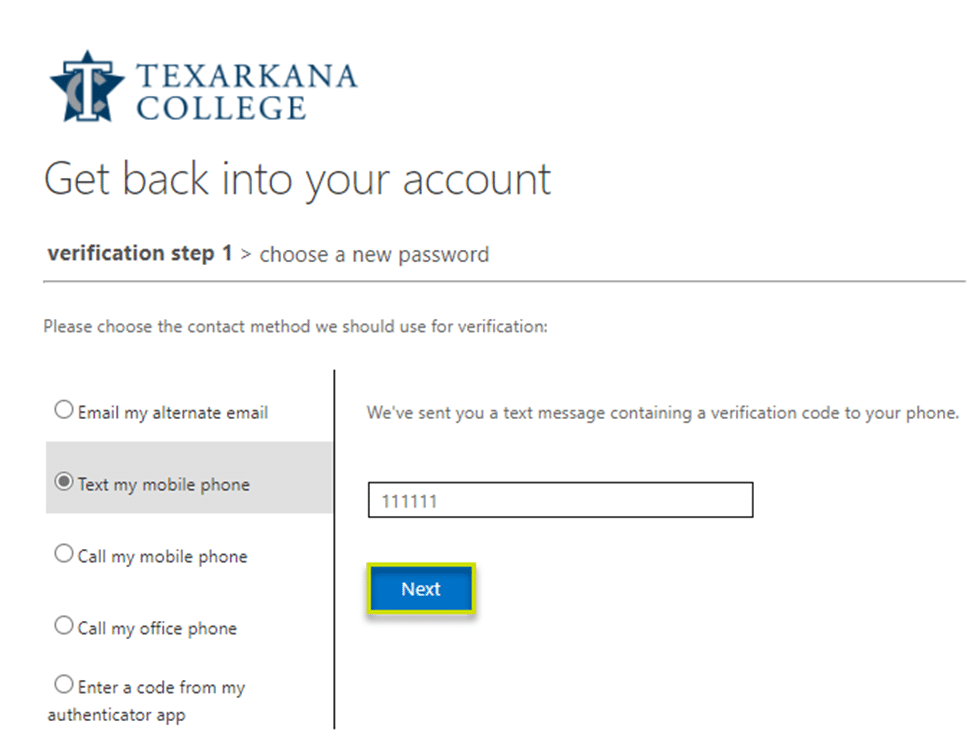
5. Enter the verification code from the text message or call you received.
 6. Enter your new password and click Finish.
a. Note: Please refer to the bottom of this page for Password Requirements.
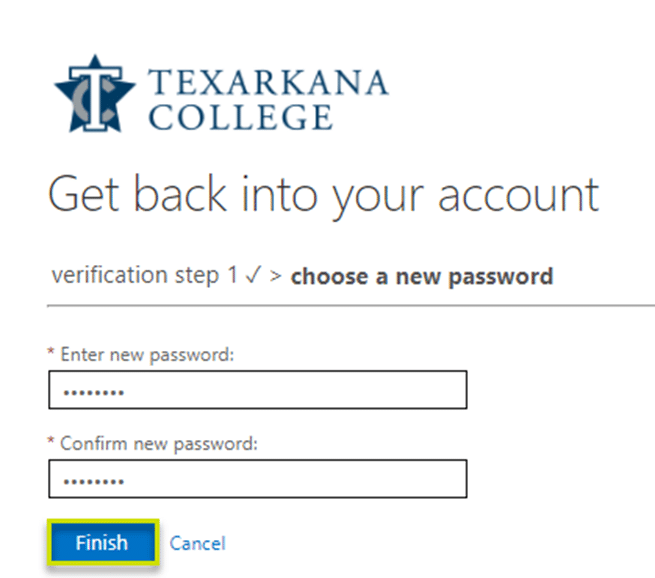
7. The message “Your password has been reset” will appear after completion.

Password Requirements
For Students:
- Minimum length of 8 characters
- Must contain 3 of the 4 character types: uppercase letter, lowercase letter, number, or special character
- Do not re-use a password, our system remembers the last 24 passwords
- The password cannot contain any part of your name
- Passwords expire every 91 days
For Employees:
- Minimum length of 15 characters
- Must contain 3 of the 4 character types: uppercase letter, lowercase letter, number, or special character
- Do not re-use a password, our system remembers the last 24 passwords
- The password cannot contain any part of your name
- Passwords expire every 364 days
Not registered for SSPR?
Contact the Service Desk for a new password, then setup your SSPR methods. This will allow you to use the Self-Service Password Reset utility 24/7 for password resets!
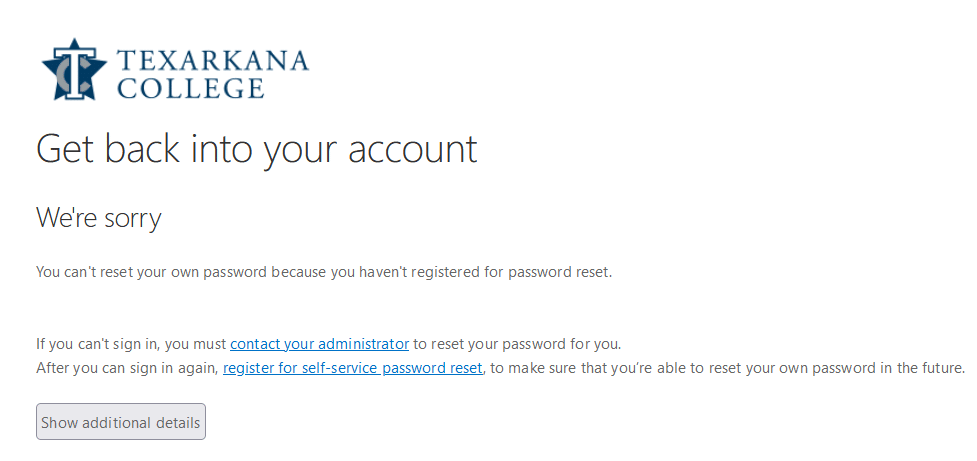
Example of error when user is not registered for SSPR “You can’t reset your own password because you haven’t registered for password reset.”
Add/Update SSPR Sign-in Methods (refer to Solution for more info)
1. Browse to https://aka.ms/ssprsetup/
2. Click +Add Method and configure the method you would like to use.