Multifactor Authentication (MFA) Initial Setup with Text Messages
Multifactor authentication (MFA), also known as two-factor authentication (2FA), is a feature which allows users to better protect their account by requiring additional steps when signing in. MFA increases security on your account by requiring you to first sign in using your username and password, then approve the sign in request using a second factor like your mobile phone.
Time needed: 10 minutes
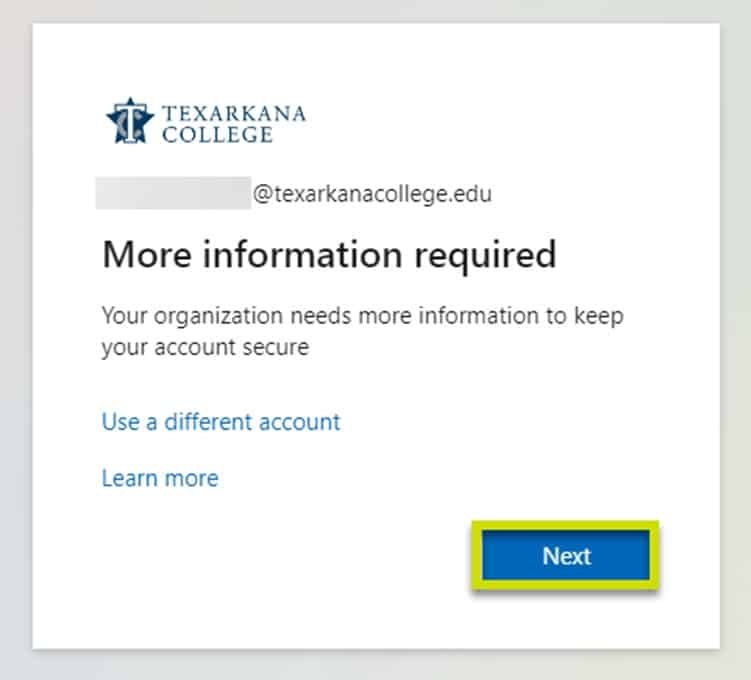
- When logging in to myTC, you will be prompted with the “More information required” screen. Select “Next”.
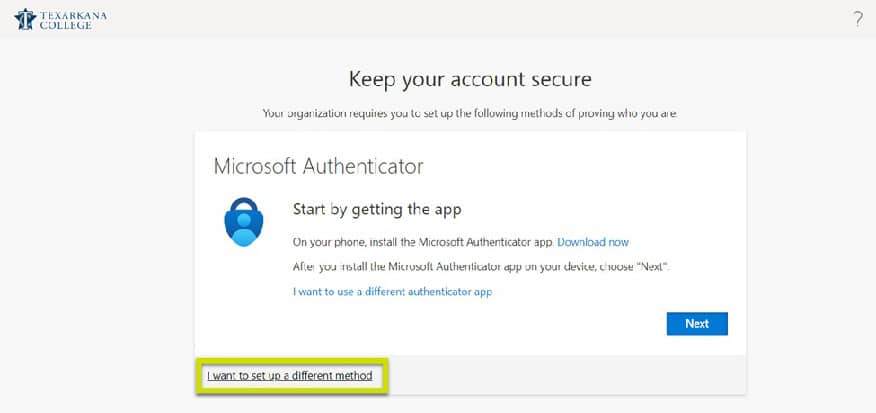
- The next prompt will ask you to get the Microsoft Authenticator app. Select the I want to set up a different method.
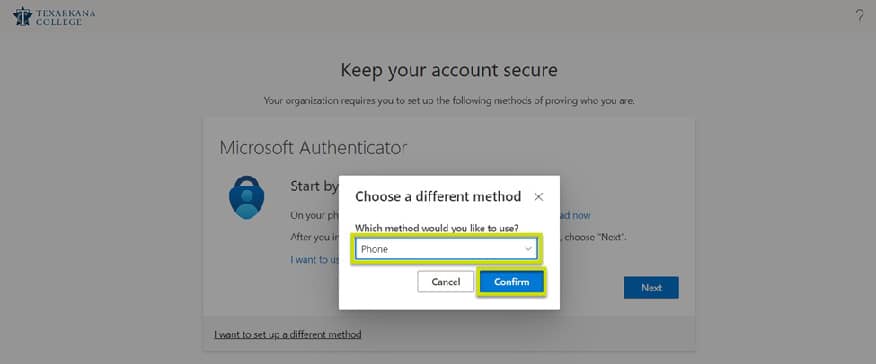
- From the drop down menu, select Phone and then Confirm.
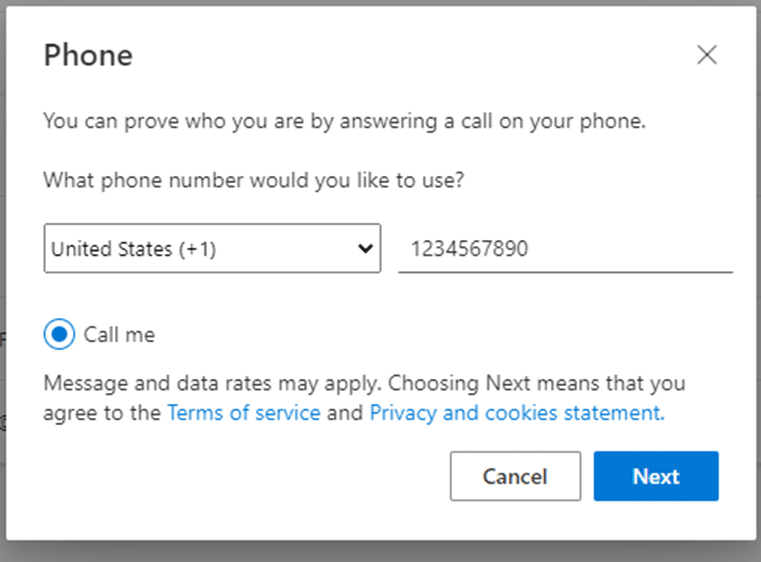
- Enter your Phone Number next to the area code field and select Next.
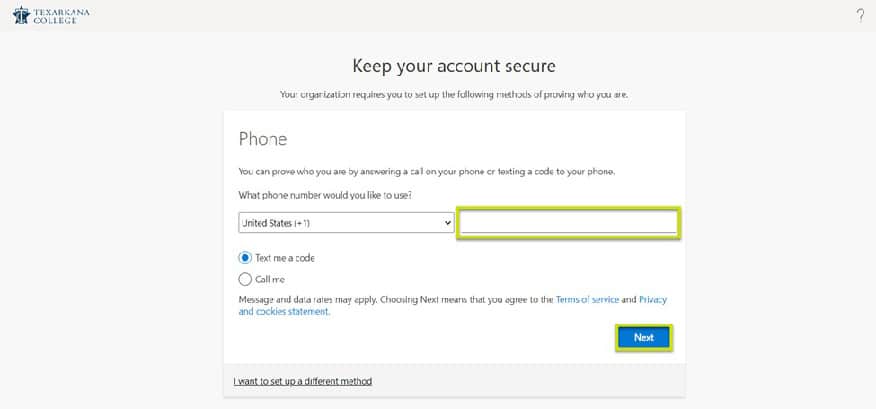
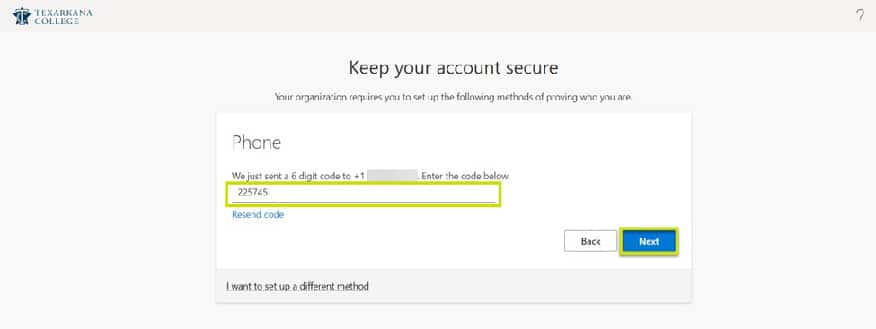
- You will receive a 6 digit code via text to your phone. Enter that code and select Next.
- A SMS verified. Your phone was registered successfully. message will be displayed, select Next. Then select Done.

Setting up additional MFA methods
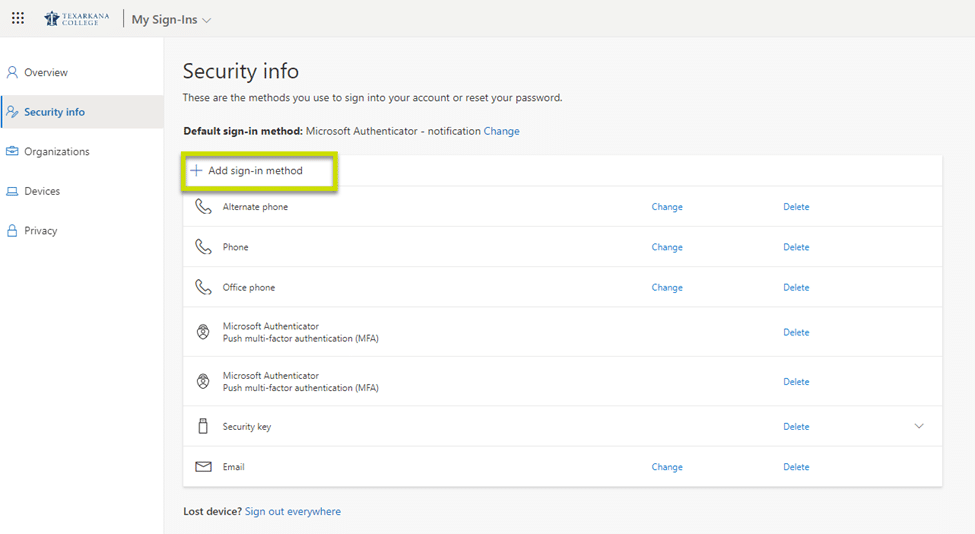
We suggest setting up additional MFA methods in case you forget or misplace your mobile phone. You can access the Security info page to add methods by going to https://aka.ms/mfasetup.
The following steps provide a basic overview of adding additional methods via the Security info page. In general, they will be the same as the steps listed above.
- Select Add sign-in method and choose the authentication method you would like to add.
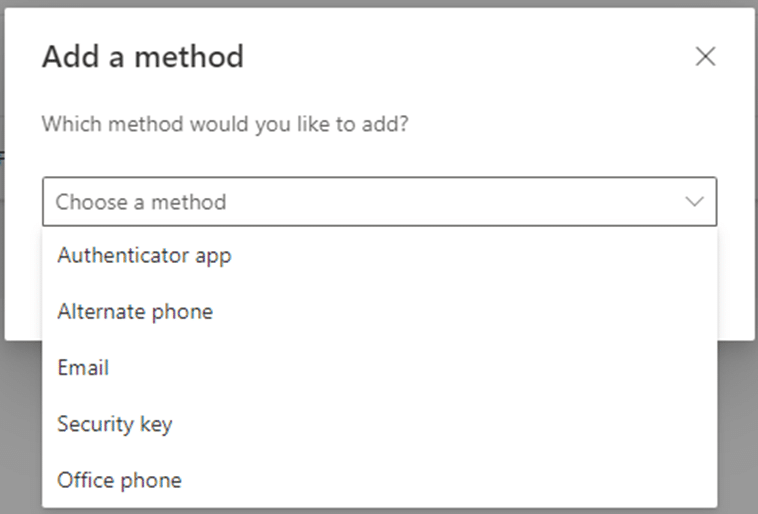
Examples of setting up different methods:
- Alternate phone / Office phone – Enter your alternative / office phone number, answer the call, and press the # key to verify the authentication.
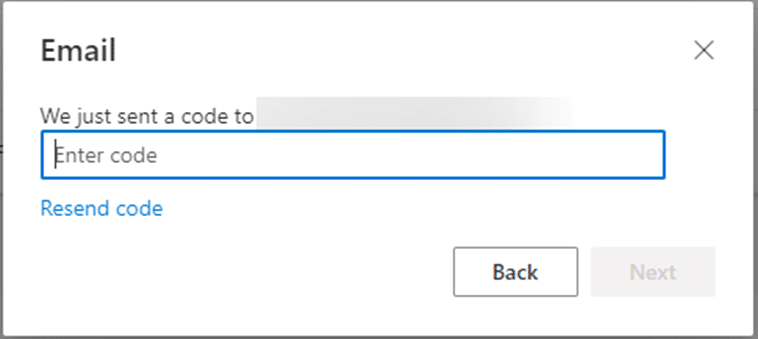
- Email – Input your personal email address and enter the code sent from the email to authenticate.